You can print logs in your Tensorlake application to help you debug and monitor your application’s behavior. Logs can be printed using the print function or by using a logging library such as logging or structlog. We recommend you using structured logs for better analysis and visualization. They’re usually JSON that contain key-value pairs, making them easier to parse. The following guide will help you configure structlog to take full advantage of structured logs in Tensorlake.

Adding Structured Logs to Your Application

Using Tensorlake’s built-in application logger

The Tensorlake SDK provides a built-in application logger that outputs messages in a predefined JSON format. This logger is designed to be easy to use and provides a simple way to log messages with structured data. To initialize it, you need to import the Logger class from the tensorlake.applications module and use the get_logger method:
from tensorlake.applications import Logger

logger = Logger.get_logger(module="my_app")
Then you can use it to log messages with structured data:
@application()
@function(description="An example of logging in Tensorlake")
def logging_example(name: str) -> str:
    logger.info("User logged in", user_id=123)
    
    return f"Hello, {name}. This is a logging example!"
You can also log exceptions as structured data by using the exc_info=True parameter:
@application()
@function(description="An example of logging in Tensorlake")
def logging_example(name: str) -> str:
    try:
        # some code that may raise an exception
    except Exception:
        logger.error("An error occurred", exc_info=True)
    
    return f"Hello, {name}. This is a logging example!"
Finally, if you need to bind additional context to your logs, you can use the bind() method:
@application()
@function(description="An example of logging in Tensorlake")
def logging_example(name: str) -> str:
    logger = logger.bind(user_id=123)
    logger.info("User logged in")
    logger.debug("Debug message")
    
    return f"Hello, {name}. This is a logging example!"

Using a custom StructLog configuration

If you don’t want to use the Tensorlake’s built-in application logger, you can use structlog to add structured logs to your application. Structlog is a Python library that provides a simple and flexible way to create structured logs. To configure structlog to print JSON logs, including stack traces, we recommend using the following code:
import structlog

structlog.configure(
    processors=[
        structlog.stdlib.add_log_level,  # Add log level
        structlog.processors.TimeStamper(fmt="iso", key="timestamp", utc=True), # Add timestamp in RFC3339 format
        structlog.processors.StackInfoRenderer(),  # Add stack info for exceptions
        structlog.processors.dict_tracebacks,  # Formats exception info
        structlog.processors.JSONRenderer(),  # Render the log entry as JSON
    ],
    cache_logger_on_first_use=True,
)
Before you start printing any logs in your library, you need to initialize the logger with the previous configuration. You can do this by calling the structlog.get_logger() function:
logger = structlog.get_logger("my-tensorlake-application")
After initializing the logger, you can start printing logs using the logger object inside your application. Look at this next example putting all the code together:
import structlog
from tensorlake.applications import (
    application,
    function,
)

# Configure structlog to output in JSON format
structlog.configure(
    processors=[
        structlog.stdlib.add_log_level,  # Add log level
        structlog.processors.TimeStamper(fmt="iso", key="timestamp", utc=True), # Add timestamp in RFC3339 format
        structlog.processors.StackInfoRenderer(),  # Add stack info for exceptions
        structlog.processors.dict_tracebacks,  # Formats exception info
        structlog.processors.JSONRenderer(),  # Render the log entry as JSON
    ],
    cache_logger_on_first_use=True,
)

# Create a logger instance
logger = structlog.get_logger("logging_example")


@application()
@function(description="An example of logging in Tensorlake")
def logging_example(name: str) -> str:
    logger.info("Logging example started", status="started")
    logger.debug("Debugging the payload", name=name)
    logger.warning("The application is about to crash")
    try:
        1 / 0
    except ZeroDivisionError:
        logger.error("Division by zero error", exc_info=True)

    return f"Hello, {name}. This is a logging example!"

Setting levels for your logs

By default, when you print any information with print in your application, we assign the level INFO to those logs. Tensorlake supports the 5 standard levels of logging, TRACE, DEBUG, INFO, WARNING, and ERROR. These levels are represented with numbers from Trace(1) to Error(5). Our built-in application logger, as well as Structlog, provides helpers that will set the log level for you directly, like logger.debug and logger.warning. To set the logging level manually, you have to print JSON objects that include a level attribute. We take the string representation of these levels from the JSON objects and transform them into our internal representation:
@application()
@function(description="An example of logging in Tensorlake")
def manual_log_level_example(_name: str):
    print('{"level": "DEBUG", "message": "Debugging the payload"}')

Log retention

By default, all application logs are retained for 7 days. This retention period can be increased to 30 days or 1 year maximum. If you want to increase the retention period contact Tensorlake support at [email protected].

Visualizing the logs in Tensorlake’s Dashboard

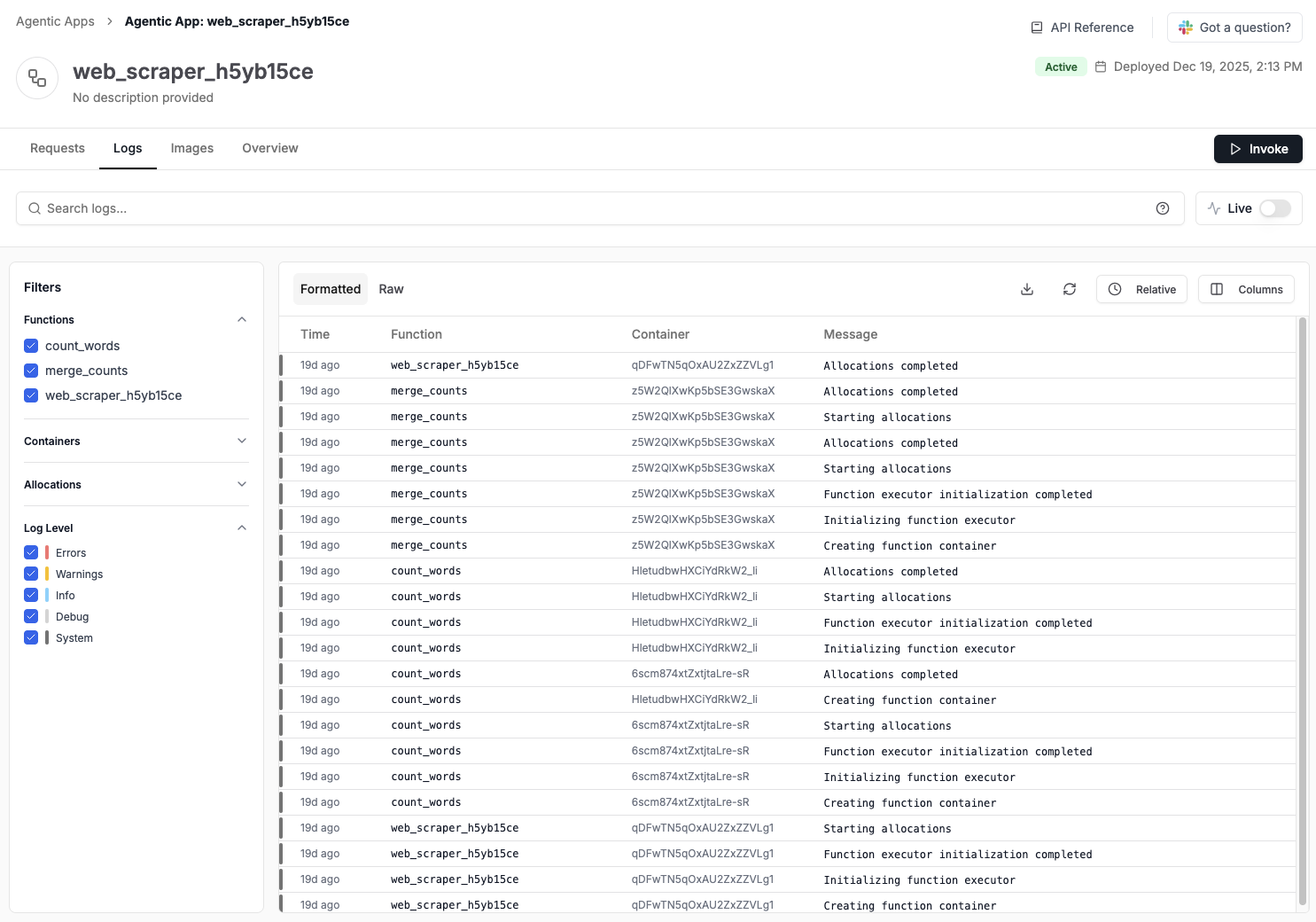
The logs that you print in your applications can be visualized in each application page of the Tensorlake’s Dashboard. That page allows you to filter logs by different parameters, like request IDs, function names, and logging levels.
Get Application logs via API

Application logs are also accessible via the Tensorlake API. You can use curl or any other HTTP client to retrieve logs for your application. The following section explains how to do that:
curl -X GET \
  "https://api.tensorlake.ai/applications/{application}/logs" \
  -H "Authorization: Bearer $TENSORLAKE_API_KEY"
Response:
{
  "logs": [
    {
      "timestamp": 1717171717171717171,
      "uuid": "550e8400-e29b-41d4-a716-446655440000",
      "namespace": "my-namespace",
      "application": "my-application",
      "body": "Processing started for item 1",
      "level": 3,
      "logAttributes": "{\"level\": \"info\"}"
    }
  ],
  "nextToken": "1717171717171717172.550e8400-e29b-41d4-a716-446655440000"
}

Filtering Logs

You can filter logs using query parameters to narrow down results: Filter by Request ID
curl -X GET \
  "https://api.tensorlake.ai/applications/{application}/logs?requestId={request_id}" \
  -H "Authorization: Bearer $TENSORLAKE_API_KEY"
Filter by Function Name
curl -X GET \
  "https://api.tensorlake.ai/applications/{application}/logs?function={function_name}" \
  -H "Authorization: Bearer $TENSORLAKE_API_KEY"
Filter system events out By default, we add system and application events to the logs, so you can keep track of the lifecycle of your requests. Use events if you want to filter out system events:
curl -X GET \
  "https://api.tensorlake.ai/applications/{application}/logs?events=3" \
  -H "Authorization: Bearer $TENSORLAKE_API_KEY"
Filter by log levels Log levels are identified by numbers from Trace(1) to Error(5). By default, we show logs for all levels. These are all the possible values for the different levels:
  1. Trace
  2. Debug
  3. Info
  4. Warning
  5. Error
If you want to learn how to set these log levels, check out our Logging reference.
curl -X GET \
  "https://api.tensorlake.ai/applications/{application}/logs?level={level}" \
  -H "Authorization: Bearer $TENSORLAKE_API_KEY"
Combine Filters Use the gate parameter to combine multiple filters with AND (default) or OR logic:
# Get logs matching BOTH request ID AND function name
curl -X GET \
  "https://api.tensorlake.ai/applications/{application}/logs?requestId={request_id}&function={function_name}&gate=and" \
  -H "Authorization: Bearer $TENSORLAKE_API_KEY"

# Get logs matching EITHER request ID OR function name
curl -X GET \
  "https://api.tensorlake.ai/applications/{application}/logs?requestId={request_id}&function={function_name}&gate=or" \
  -H "Authorization: Bearer $TENSORLAKE_API_KEY"

Pagination and Ordering

Get Most Recent Logs (Default) By default, logs are returned in descending order (newest first). Use tail to specify the number of logs:
curl -X GET \
  "https://api.tensorlake.ai/applications/{application}/logs?tail=50" \
  -H "Authorization: Bearer $TENSORLAKE_API_KEY"
Get Oldest Logs First Use head to get logs in ascending order (oldest first):
curl -X GET \
  "https://api.tensorlake.ai/applications/{application}/logs?head=50" \
  -H "Authorization: Bearer $TENSORLAKE_API_KEY"
Paginate Through Logs Use the nextToken from the response to fetch the next page:
curl -X GET \
  "https://api.tensorlake.ai/applications/{application}/logs?nextToken={next_token}" \
  -H "Authorization: Bearer $TENSORLAKE_API_KEY"

Query Parameters Reference

ParameterTypeDescription
requestIdStringFilter logs for specific request IDs
functionStringFilter logs for specific function names
functionExecutorStringFilter logs for specific function executor containers
functionRunIdStringFilter logs for specific function runs
allocationIdStringFilter logs for specific allocations
levelIntegerFilter logs for specific log levels
eventsIntegerFilter system and application events
gateand | orLogic for combining multiple filters (default: and)
headIntegerNumber of logs to return in ascending order (default: 100)
tailIntegerNumber of logs to return in descending order (default: 100)
nextTokenStringPagination token from previous response
The parameter that filter logs (requestId, function, functionExecutor, functionRunId, allocationId, and level) can be repeated one or multiple times. If you add more than one parameter with the same name, Tensorlake will search for both parameters using the gate parameter as connector. For example, filtering DEBUG and INFO logs:
curl -X GET \
  "https://api.tensorlake.ai/applications/{application}/logs?level=2&level=3" \
  -H "Authorization: Bearer $TENSORLAKE_API_KEY"