> ## Documentation Index
> Fetch the complete documentation index at: https://docs.tensorlake.ai/llms.txt
> Use this file to discover all available pages before exploring further.
# Webhooks
> Learn how to use webhooks to get notified when Tensorlake Jobs finishes.
You can use webhooks to get notified about the status of Document Ingestion Jobs.
Webhooks are configured on a per-project basis. The project associated with the API key that is being used
to configure the webhook is the one for which the webhook will be triggered.
*Our webhooks events are managed by Svix, please note none of your data is sent to Svix, only event statuses.*
## Create and Configure Your Webhook
To use Webhooks with Tensorlake, make sure you have created a project on [Tensorlake Cloud](https://cloud.tensorlake.ai).
It is important to disable CSRF protection for the endpoint if the framework you use enables them by default.
Go to the project that you want to create the webhook for, and click into the Webhooks tab.
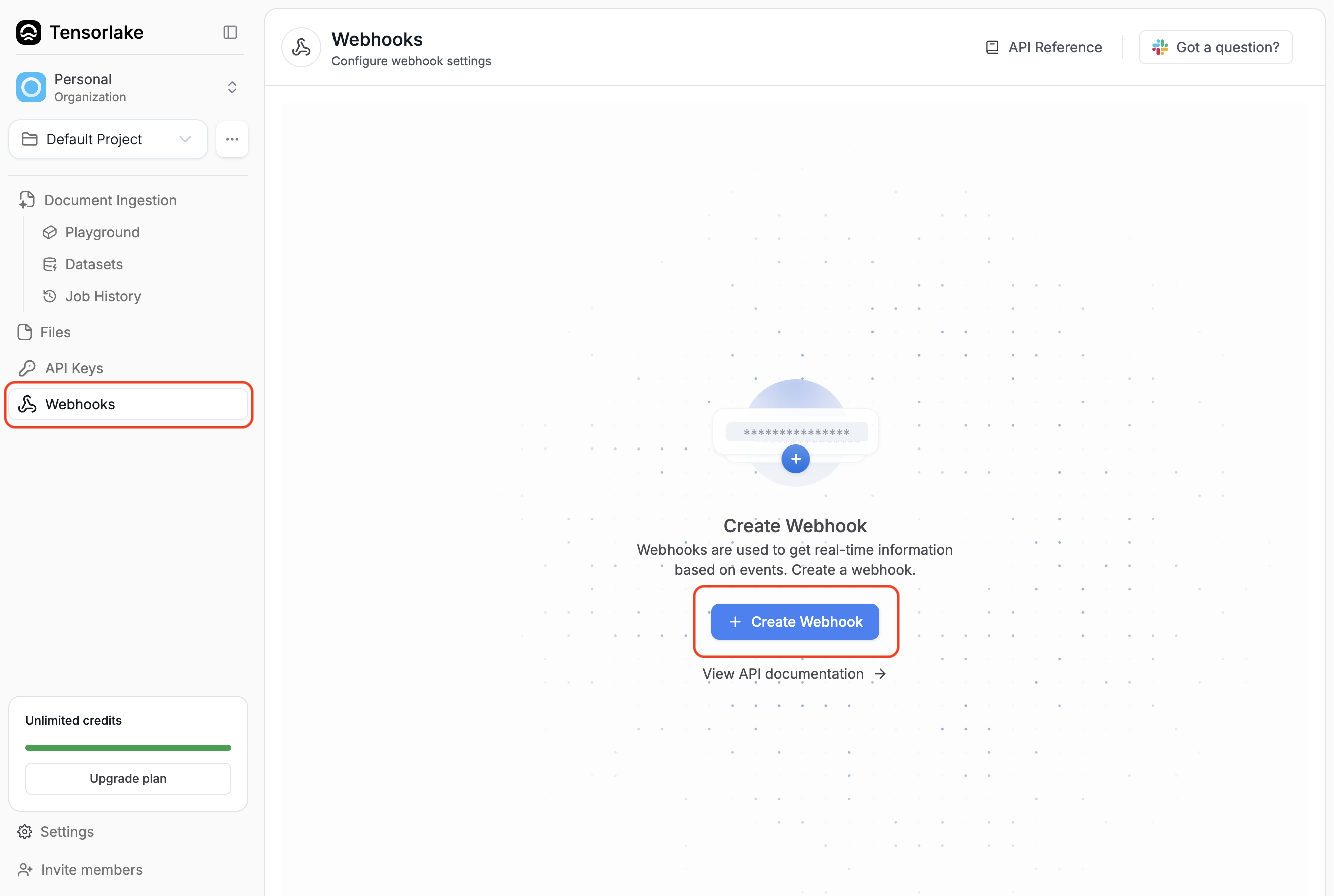 Only admins for a project can create webhooks. However, members of a project can view webhooks.
Give the webhook a name, and provide a URL that you control.
Only admins for a project can create webhooks. However, members of a project can view webhooks.
Give the webhook a name, and provide a URL that you control.
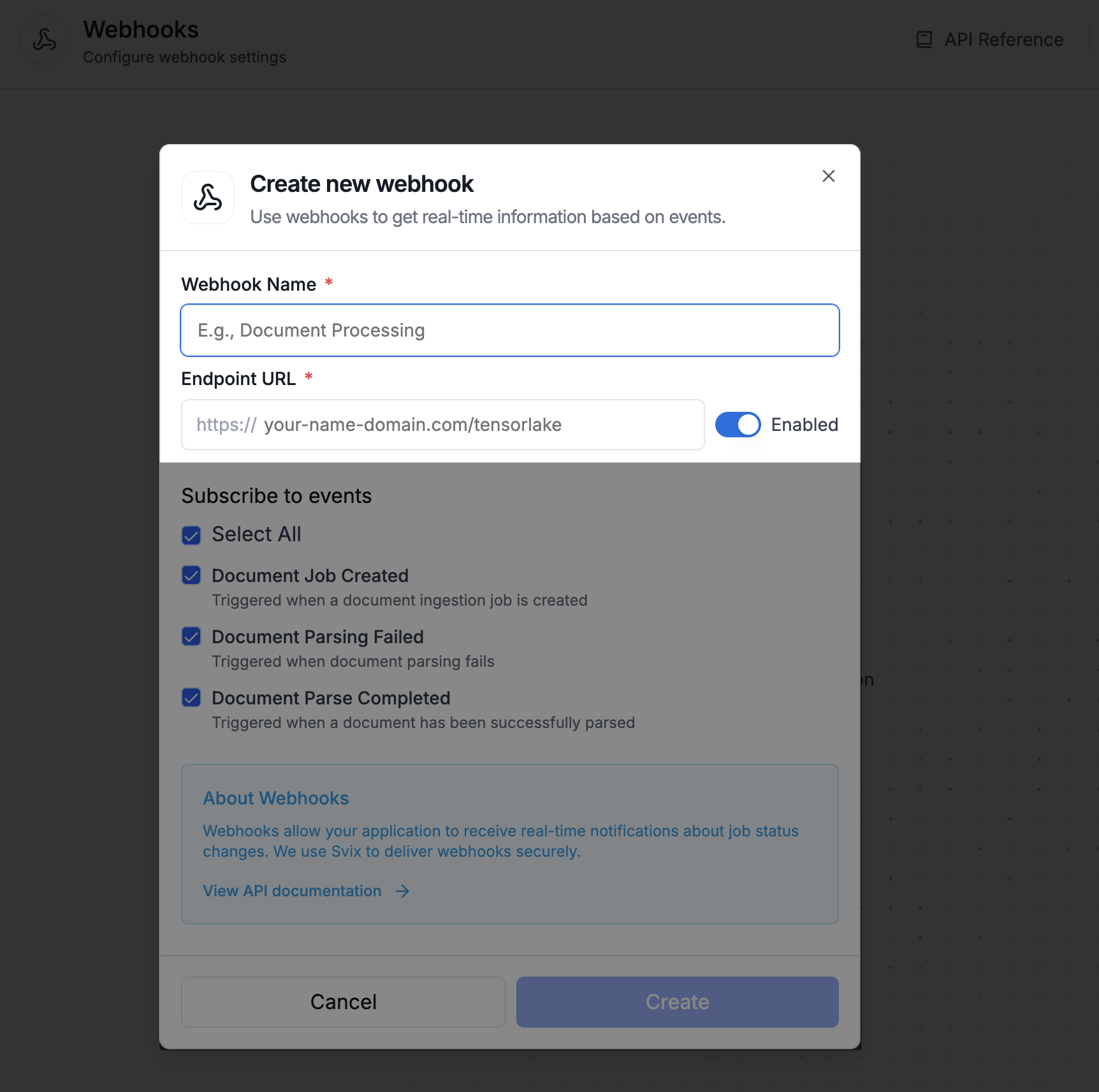 Configure your webhook by selecting the event types that you want to listen to.
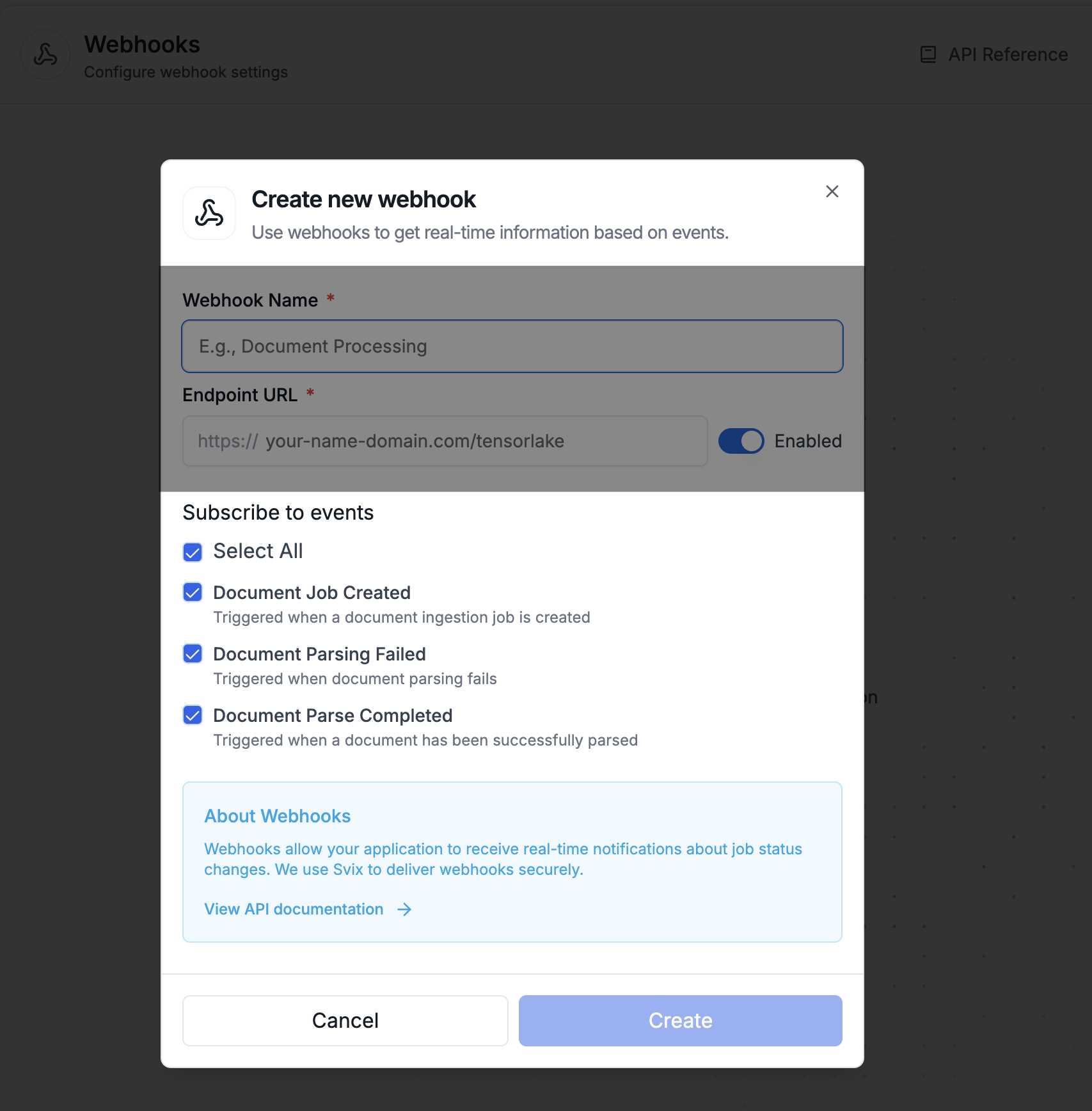 The three event types are:
1. `tensorlake.document_ingestion.job.created`: Triggered when Tensorlake receives the request to parse a document and kicks off the parsing.
2. `tensorlake.document_ingestion.job.failed`: Triggered when a parsing job fails.
3. `tensorlake.document_ingestion.job.completed`: Triggered when a parsing job succeeds.
## Understand the Webhook Payload
The payload of the webhook will depend on the event type received. The payload will be a JSON object with the following structure:
```json theme={null}
{
"job_id": "parse_XXX",
"status": "pending",
"created_at": "2023-10-01T12:00:00Z",
}
```
```json theme={null}
{
"job_id": "parse_XXX",
"status": "failure",
"error": "Error message describing the failure",
"created_at": "2023-10-01T12:00:00Z",
"finished_at": "2023-10-01T12:05:00Z"
}
```
```json theme={null}
{
"job_id": "parse_XXX",
"status": "successful",
"created_at": "2023-10-01T12:00:00Z",
"finished_at": "2023-10-01T12:05:00Z",
"usage": {
"pages_parsed": 10,
"extraction_input_tokens_used": 0,
"extraction_output_tokens_used": 0,
"ocr_input_tokens_used": 0,
"ocr_output_tokens_used": 0,
"signature_detected_pages": 0,
"strikethrough_detected_pages": 0,
"summarization_input_tokens_used": 0,
"summarization_output_tokens_used": 0
}
}
```
### Workflow Payloads
When all functions of an application finish running for a given input:
```json theme={null}
{
"workflow_name": "workflow_XXXX",
"invocation_id": "invocation_XXXX",
"fn_status": {
"fn_A": "success",
"fn_B": "failure"
}
}
```
Possible statuses for each function:
* `success` — The function finished running successfully.
* `failure` — The function failed to finish running.
## Test Your Webhooks in Tensorlake Cloud
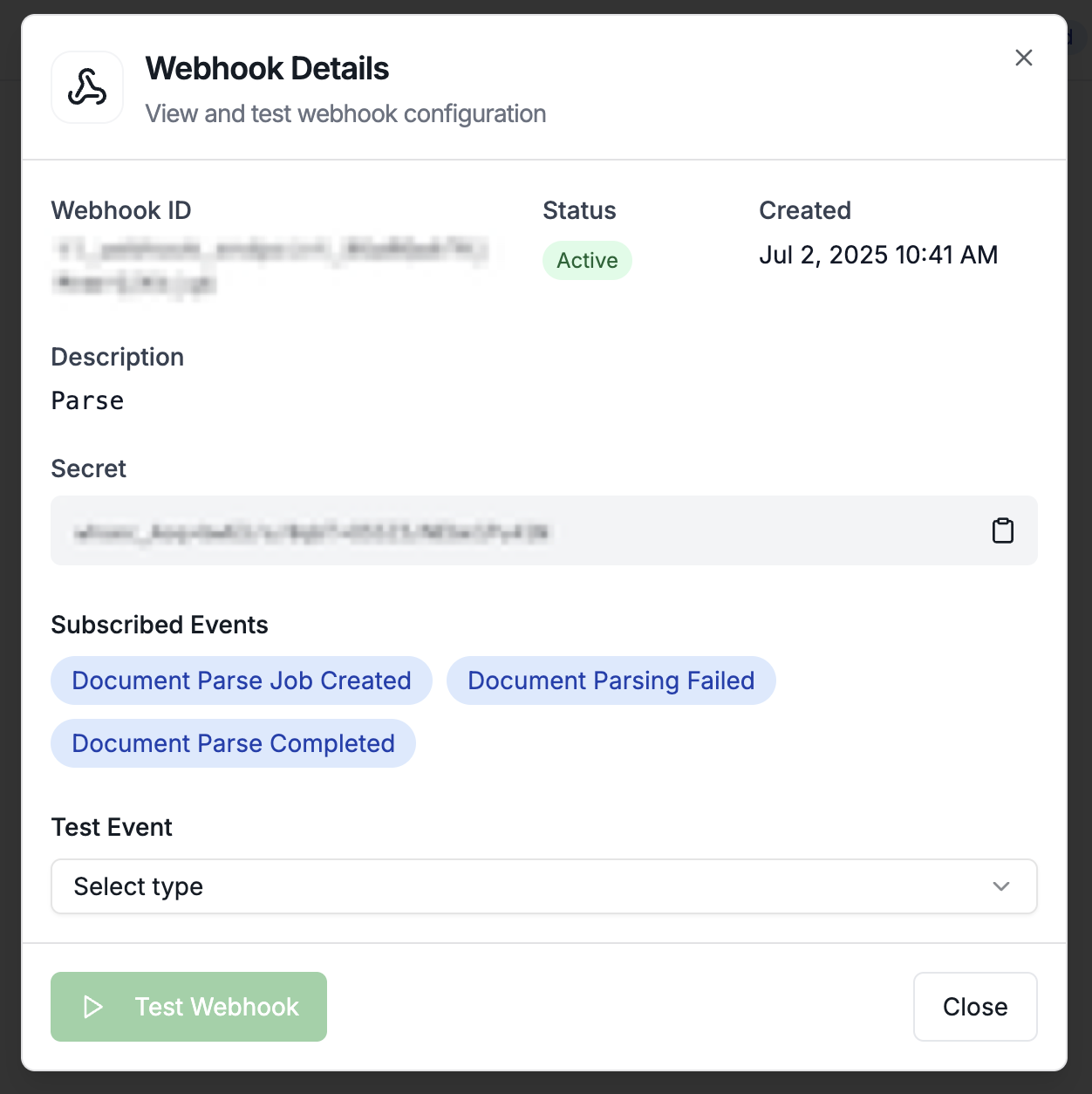
We have a UI to test webhooks. After creating a webhook, select on the event type you want to test.
The three event types are:
1. `tensorlake.document_ingestion.job.created`: Triggered when Tensorlake receives the request to parse a document and kicks off the parsing.
2. `tensorlake.document_ingestion.job.failed`: Triggered when a parsing job fails.
3. `tensorlake.document_ingestion.job.completed`: Triggered when a parsing job succeeds.
## Understand the Webhook Payload
The payload of the webhook will depend on the event type received. The payload will be a JSON object with the following structure:
```json theme={null}
{
"job_id": "parse_XXX",
"status": "pending",
"created_at": "2023-10-01T12:00:00Z",
}
```
```json theme={null}
{
"job_id": "parse_XXX",
"status": "failure",
"error": "Error message describing the failure",
"created_at": "2023-10-01T12:00:00Z",
"finished_at": "2023-10-01T12:05:00Z"
}
```
```json theme={null}
{
"job_id": "parse_XXX",
"status": "successful",
"created_at": "2023-10-01T12:00:00Z",
"finished_at": "2023-10-01T12:05:00Z",
"usage": {
"pages_parsed": 10,
"extraction_input_tokens_used": 0,
"extraction_output_tokens_used": 0,
"ocr_input_tokens_used": 0,
"ocr_output_tokens_used": 0,
"signature_detected_pages": 0,
"strikethrough_detected_pages": 0,
"summarization_input_tokens_used": 0,
"summarization_output_tokens_used": 0
}
}
```
### Workflow Payloads
When all functions of an application finish running for a given input:
```json theme={null}
{
"workflow_name": "workflow_XXXX",
"invocation_id": "invocation_XXXX",
"fn_status": {
"fn_A": "success",
"fn_B": "failure"
}
}
```
Possible statuses for each function:
* `success` — The function finished running successfully.
* `failure` — The function failed to finish running.
## Test Your Webhooks in Tensorlake Cloud
We have a UI to test webhooks. After creating a webhook, select on the event type you want to test.
 ## Secure your Endpoints with Signature Verification
Without signature verification, anyone could send forged requests to your
endpoint. Each webhook endpoint has a unique secret to verify the authenticity
of incoming requests.
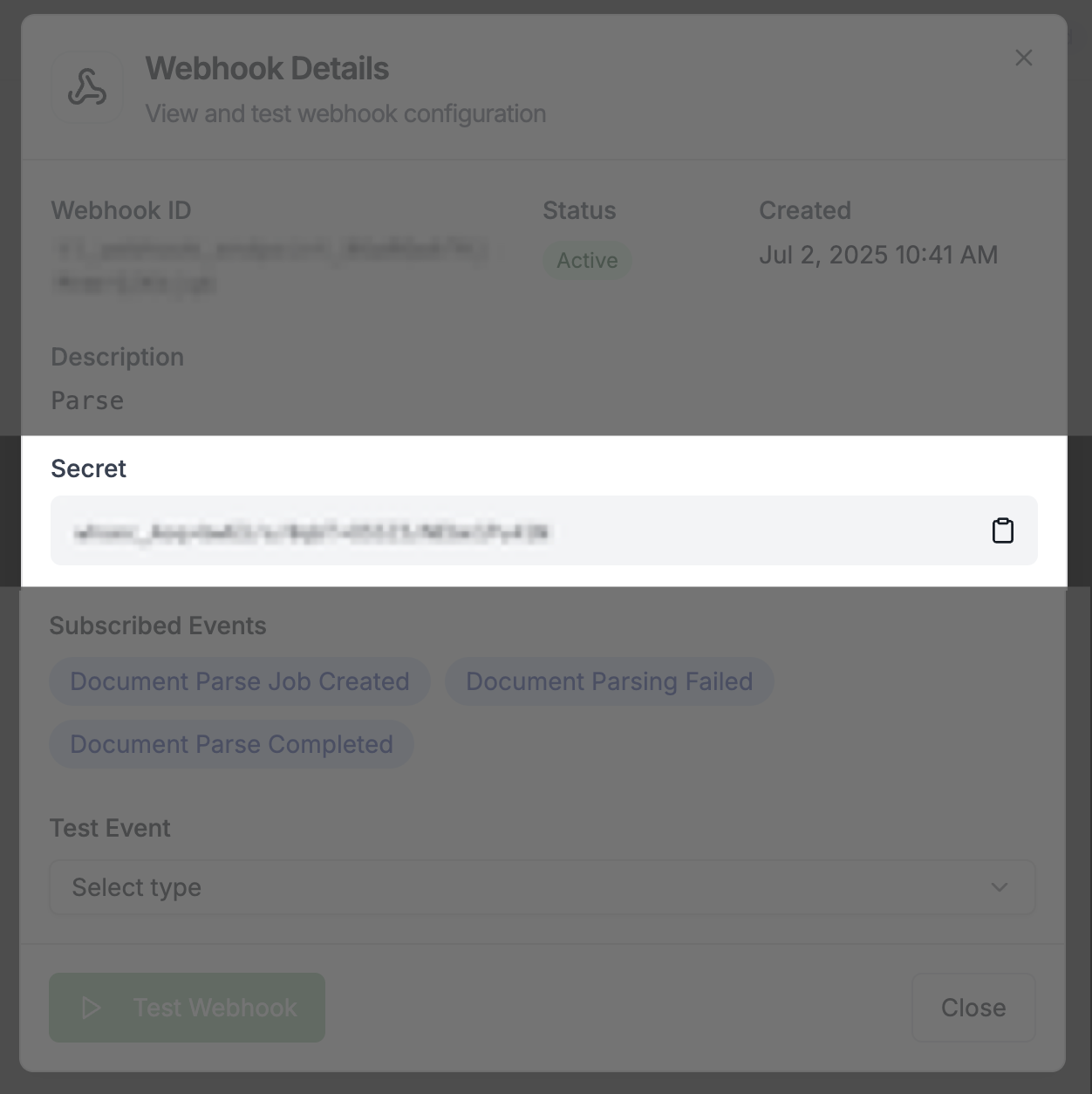
To get your webhook secret:
1. Navigate to your project's Webhooks tab in [Tensorlake Cloud](https://cloud.tensorlake.ai)
2. Click on your webhook to view its details
3. Copy the webhook secret displayed in the interface
## Secure your Endpoints with Signature Verification
Without signature verification, anyone could send forged requests to your
endpoint. Each webhook endpoint has a unique secret to verify the authenticity
of incoming requests.
To get your webhook secret:
1. Navigate to your project's Webhooks tab in [Tensorlake Cloud](https://cloud.tensorlake.ai)
2. Click on your webhook to view its details
3. Copy the webhook secret displayed in the interface
 You can use the [**Svix libraries**](https://docs.svix.com/receiving/verifying-payloads/how) to handle secret verification automatically in your application code.
Alternatively, you can [**manually verify the signature**](https://docs.svix.com/receiving/verifying-payloads/how-manual) using the secret. The verification process involves:
* Extracting the signature from the `svix-signature` header
* Computing the expected signature using your webhook secret
* Comparing the computed signature with the received signature
For more details and other verification methods, refer to the following resources:
* [Receiving Webhooks with Bridge](https://docs.svix.com/receiving/verifying-payloads/receiving-with-bridge)
* [Additional Authentication](https://docs.svix.com/receiving/additional-authentication)
* [Static Source IP Addresses](https://docs.svix.com/receiving/source-ips)
You can use the [**Svix libraries**](https://docs.svix.com/receiving/verifying-payloads/how) to handle secret verification automatically in your application code.
Alternatively, you can [**manually verify the signature**](https://docs.svix.com/receiving/verifying-payloads/how-manual) using the secret. The verification process involves:
* Extracting the signature from the `svix-signature` header
* Computing the expected signature using your webhook secret
* Comparing the computed signature with the received signature
For more details and other verification methods, refer to the following resources:
* [Receiving Webhooks with Bridge](https://docs.svix.com/receiving/verifying-payloads/receiving-with-bridge)
* [Additional Authentication](https://docs.svix.com/receiving/additional-authentication)
* [Static Source IP Addresses](https://docs.svix.com/receiving/source-ips)